If My PCS Expert is not working
Follow these steps for desktop / laptop computer.
(If you’re using a mobile phone, visit this link and choose if you have Android or Apple device to get specific instructions and watch a video )
Step 1: Confirm you can generate a sync.
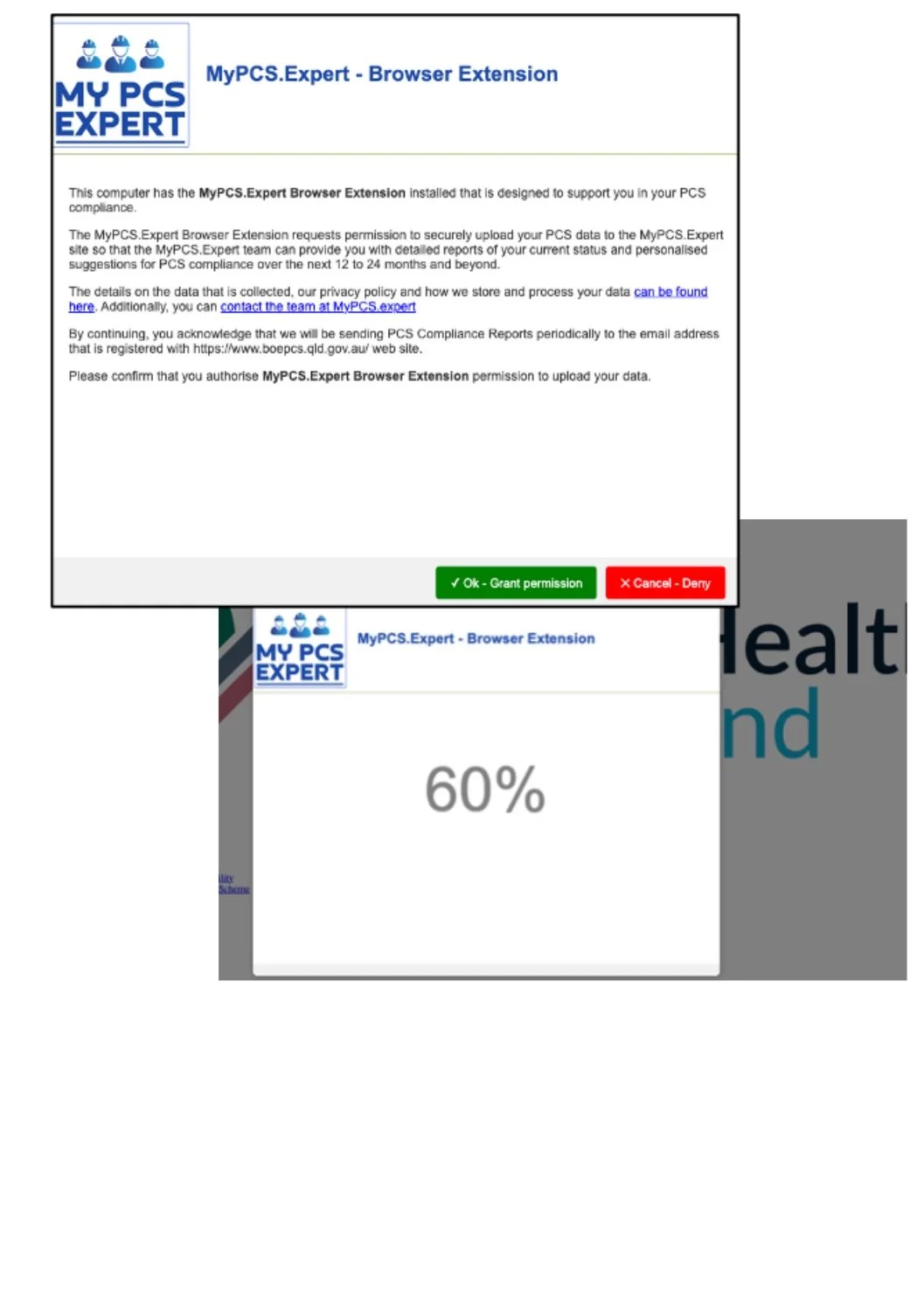
If everything is working OK, when you visit the Board of Examiners website https://www.boepcs.qld.gov.au/dashboard you should see the My PCS Expert Extension permisison page as shown below and once you press OK you should see the a percentage counting up to 100%.
If you successfully get to 100% then you have completed the sync and everything is working ok. In this situation you should receive an email from us with your report within 48 hours.
If you get to 100% and don’t hear from us, (and the email is not in your spam folder) then reach out to us HERE - and remember your report goes to the email address that you gave Board of Examiners for your Practising Certificate Scheme. If you want your MyPCSExpert report sent to another email address also follw that link to reach out to us to request this.
If you see the original permission window and press OK, but don’t see the percentage number or if the percentage stops before 100% then something unexpected has happened and you need to reach out to us HERE and let us know (include a description of what you were doing and capture a screenshot to show us later).
ONLY CONTINUE WITH THIS STEP BY STEP GUIDE IF YOU CAN NOT EVER SEE THE BROWSER EXTENSION SCREEN AND YOU ARE USING A DESKTOP OR LAPTOP COMPUTER.
(Note: you will only see the initial permission screen ONCE per day. If you ever saw it today but now it won’t appear that’s ok. You should ALWAYS see the percentage increase every time you sync no matter how many times you try each day.
Step 2: Confirm which browser you are using on your computer.
Our extension ONLY works on Google Chrome and Microsoft Edge. It does not work on Apple Safari, Firefox, etc. sorry.
Step 3: Confirm the browser extension is installed and working
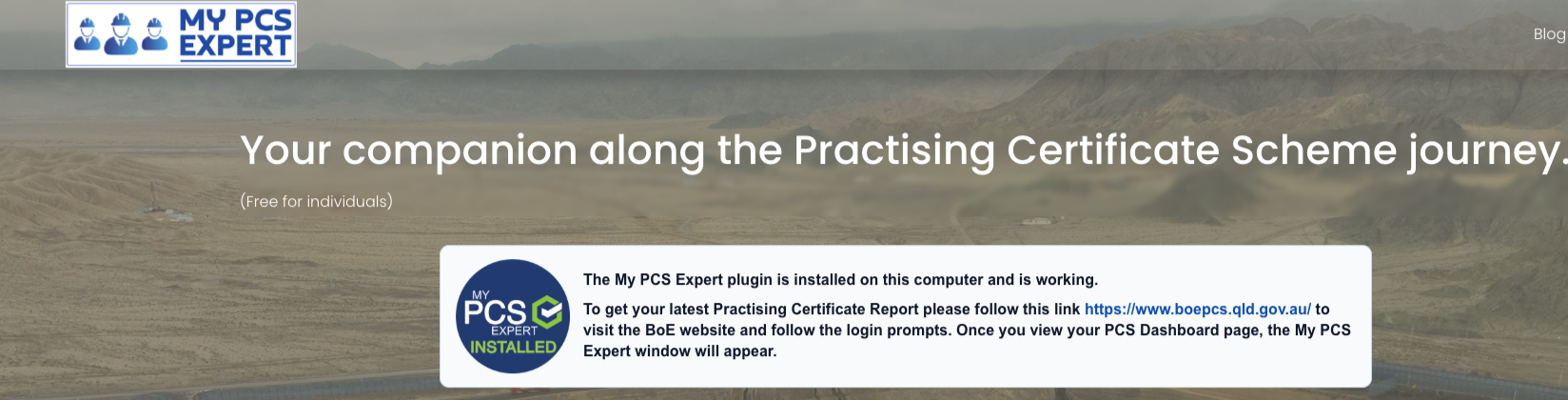
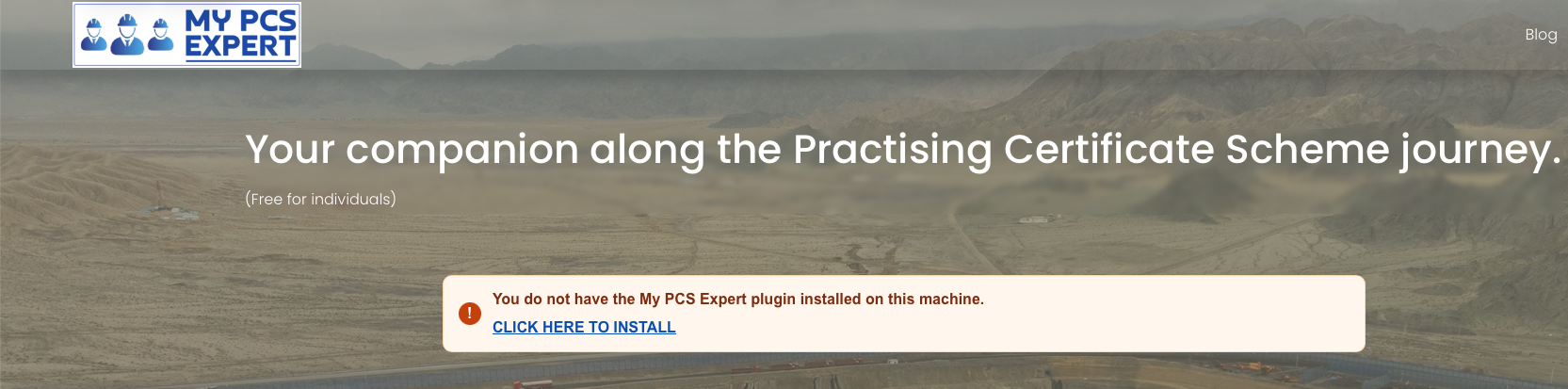
Visit https://www.mypcs.expert and you should see this banner as shown in the image below on the left “The My PCS Expert plugin is installed on this computer and is working”
(This must be done using the same browser that you visit the BoE website - ie don’t use Chrome to visit the MyPCSExpert website but then use Edge to visit the BoE website) - check that by clicking a link on screen your computer doesn’t open a different browser than the one you might have opened manually.
Below you can see the website when the browser exptension plugin is installed and working correctly, and on the right when it is not.
Step 4: Confirm the browser extension is shown inside the browser
Inside Goggle Chrome, if you press the jigsaw puzzle piece button top right you will see a list of installed extensions similar to the image below (Microsoft Edge is similar).
Make sure MyPCSExpert appears in the list. It doesn’t matter if it is in the “Full access” or “No access needed” section (that will depend on whether the browser is currently viewing the BoE website).
Step 5: Make sure you are visiting the Dashboard page on the BoE website
If everything shown above is correct, then the final check to is make sure you visit the dashboard page within the Board of Examiners website.
It is found at https://www.boepcs.qld.gov.au/dashboard - the My PCS Expert extension only triggers from this page. We suggest you bookmark this page so after you log in it shoudl redirect you to the correct page for the sync. Otherwise you will need to manually click the “Dashboard” link on the BoE website.
Again, if you have any problems at all or still need help Contact Us